


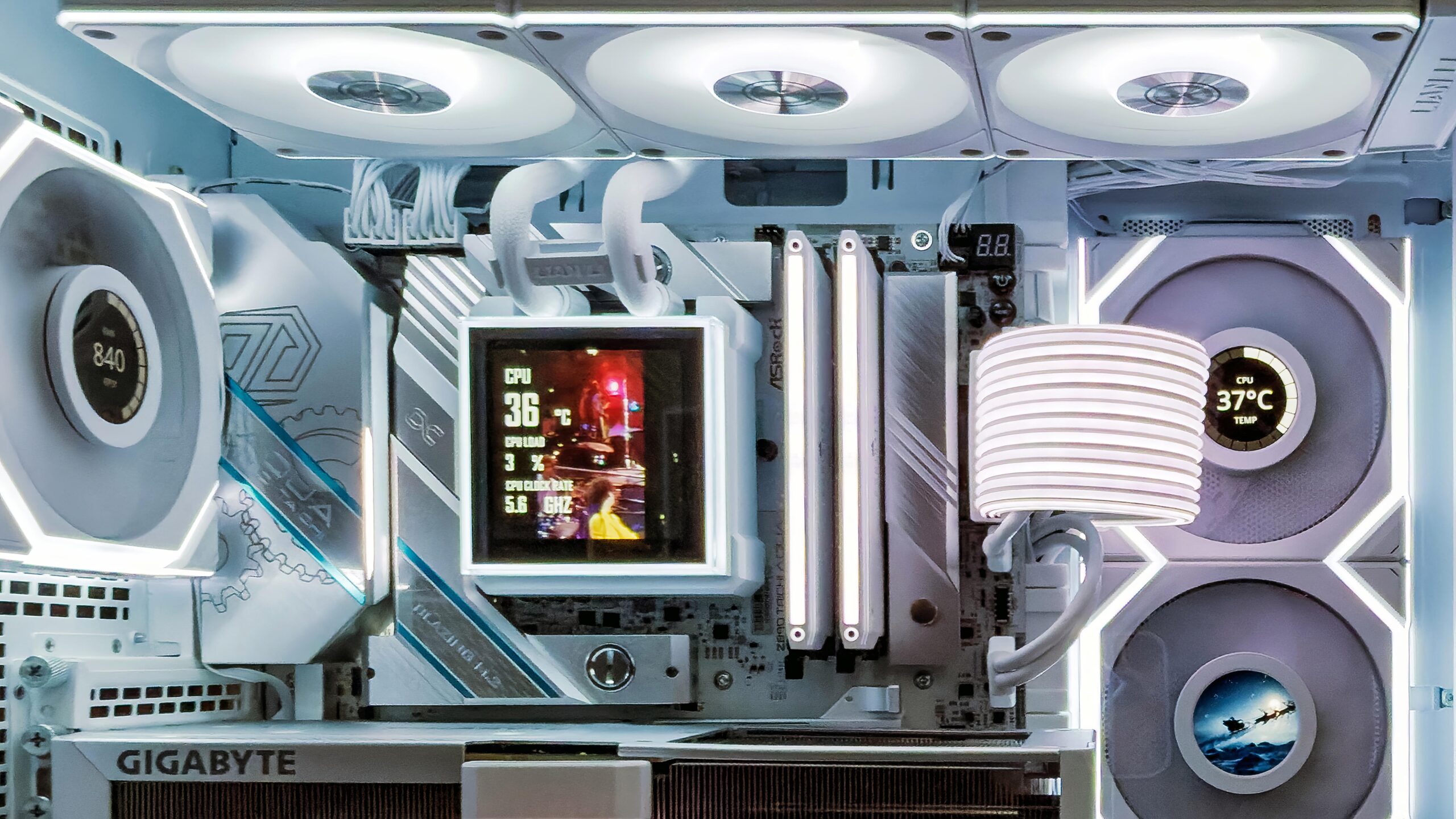
Lian Li HydroShift II LCD S 360CL AiO Water Cooler Review
Quick Navigation
Overview and First Impressions
Documentation and Initial Setup Issues
Additional Configuration in L Connect 3
Putting the HydroShift II Through Its Paces
Additional Observations and Notes
Addendum – Clarifications After Extended Use
Final Update and Recommendation
If you want to understand why I do not recommend this cooler, you can go straight to the Final Update.
Overview and First Impressions
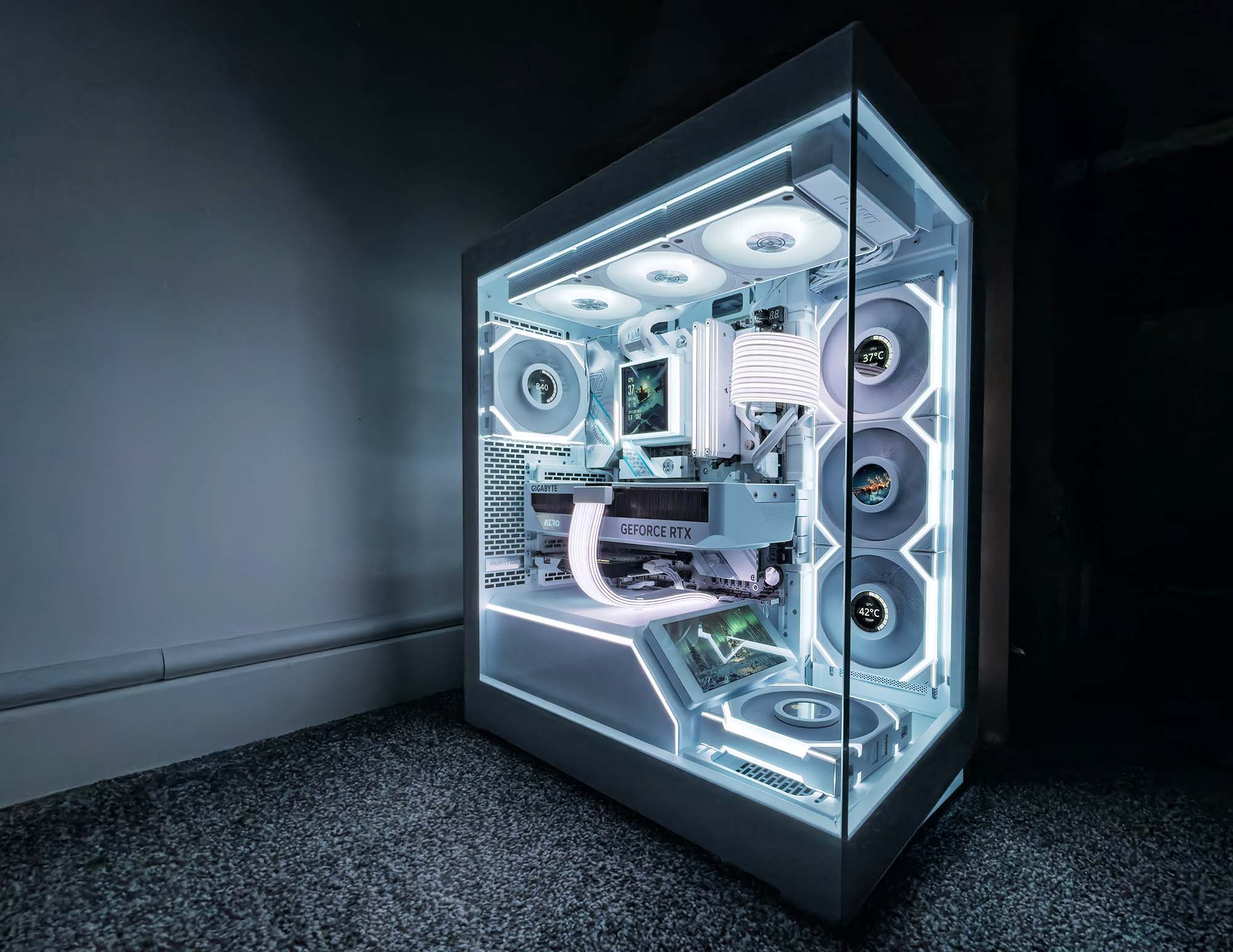
Upgrading my build’s cooling setup is usually a functional decision, but this time it was purely cosmetic. I recently switched from Arctic’s excellent Liquid Freezer III 360 AiO cooler in white to the Lian Li HydroShift II LCD S 360CL AiO Water Cooler with RGB and LCD display in white. I have to say, the visual difference alone was tempting.
What first drew me to the Lian Li HydroShift was the unusually clean radiator design. The water cooling tubes exit from the middle of the radiator rather than from the side where they usually hang down. This creates a much neater overall appearance. Add to that the large, fully customisable LCD screen, and it was hard to resist.
I have owned two Arctic AiO coolers previously. The first was black, and later I replaced it with the white version when it was released to better suit my build. Both of those coolers were completely silent straight out of the box using just a single PWM connection.
The Lian Li HydroShift experience, however, was far less straightforward.
Documentation and initial setup issues
Following the instructions provided with the cooler would have left me with a noisy pump. The wording throughout the manual is vague and often misleading, particularly when it comes to power and cable connections. The leaflet instructs users to connect the cooler directly to SATA power, and then states that if the motherboard is used for power, both connectors from the water cooling unit should be connected and the motherboard BIOS set to full speed.
This wording is problematic for several reasons. The connectors coming from the AiO are not pins at all, but female connectors. One has two wires, and the other has four, yet the manual never differentiates between them. There is no explanation of which connector is intended for which header, or what functional difference exists between the two. Ideally, the instructions should clearly reference the two wire connector and the four wire connector and explain their roles.
The online FAQ and troubleshooting documentation does slightly better in some places by referring to four pin and two pin cables, but even there the guidance remains inconsistent. In some scenarios users are told to connect the four wire cable to SATA power and leave the two wire cable disconnected. In others, both are instructed to be connected to SATA. Elsewhere, users are told to connect both to the motherboard without any clarity about whether they should go to the CPU fan header, pump header, or system fan header.
Most importantly, the troubleshooting section that addresses pump noise does not actually explain how noise can be eliminated through proper control. The causes listed focus on tube brackets, bubbles, or internal defects, but do not address signal conflicts or control mode mismatches, which in my case were the real source of the noise.
Achieving silent operation
After a great deal of testing and experimentation, I found a configuration that worked perfectly and resulted in completely silent operation.
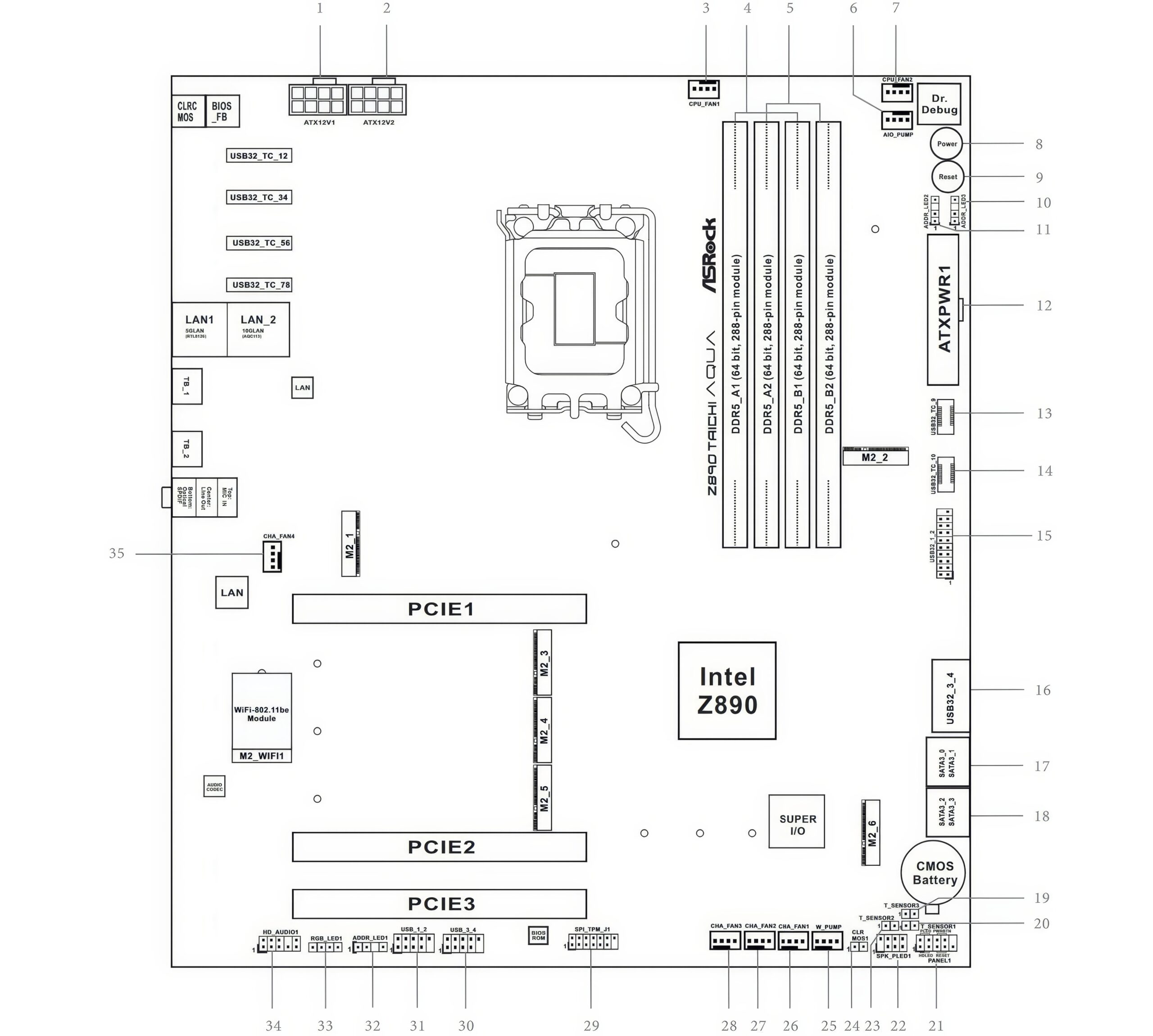
I connected only the four wire connector from the AiO to the dedicated pump header on the motherboard. The two wire connector was left completely disconnected.
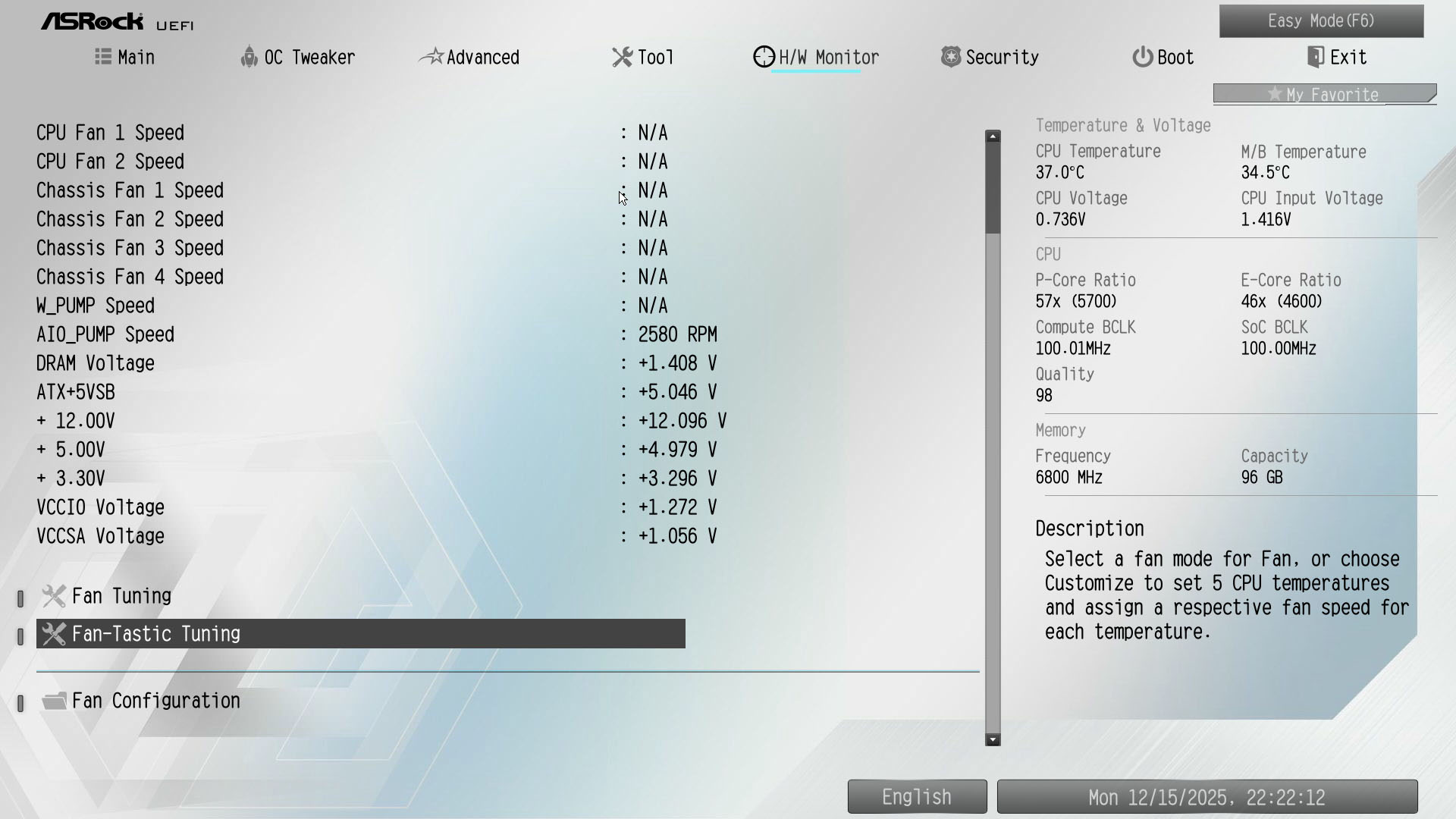
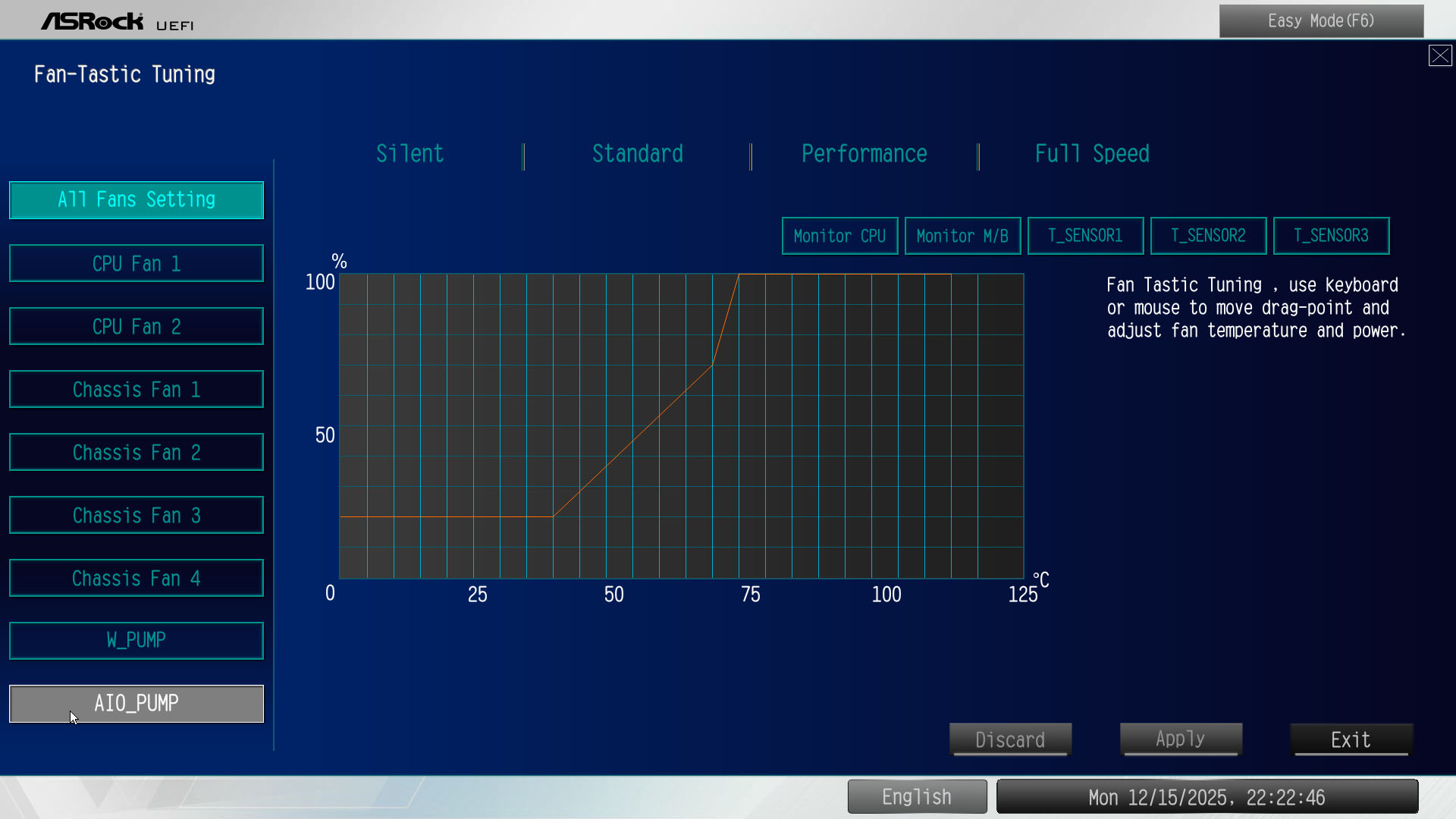
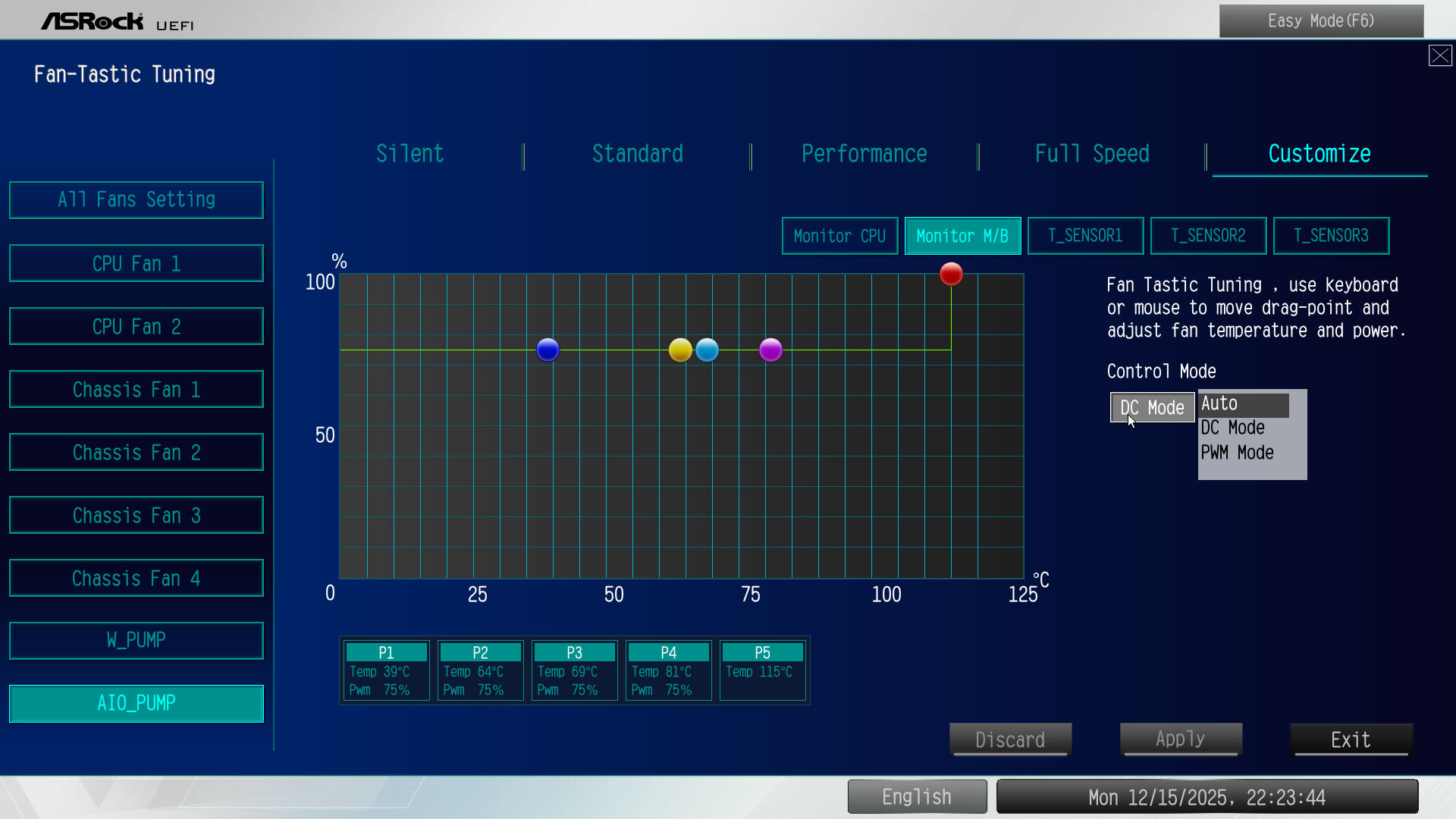
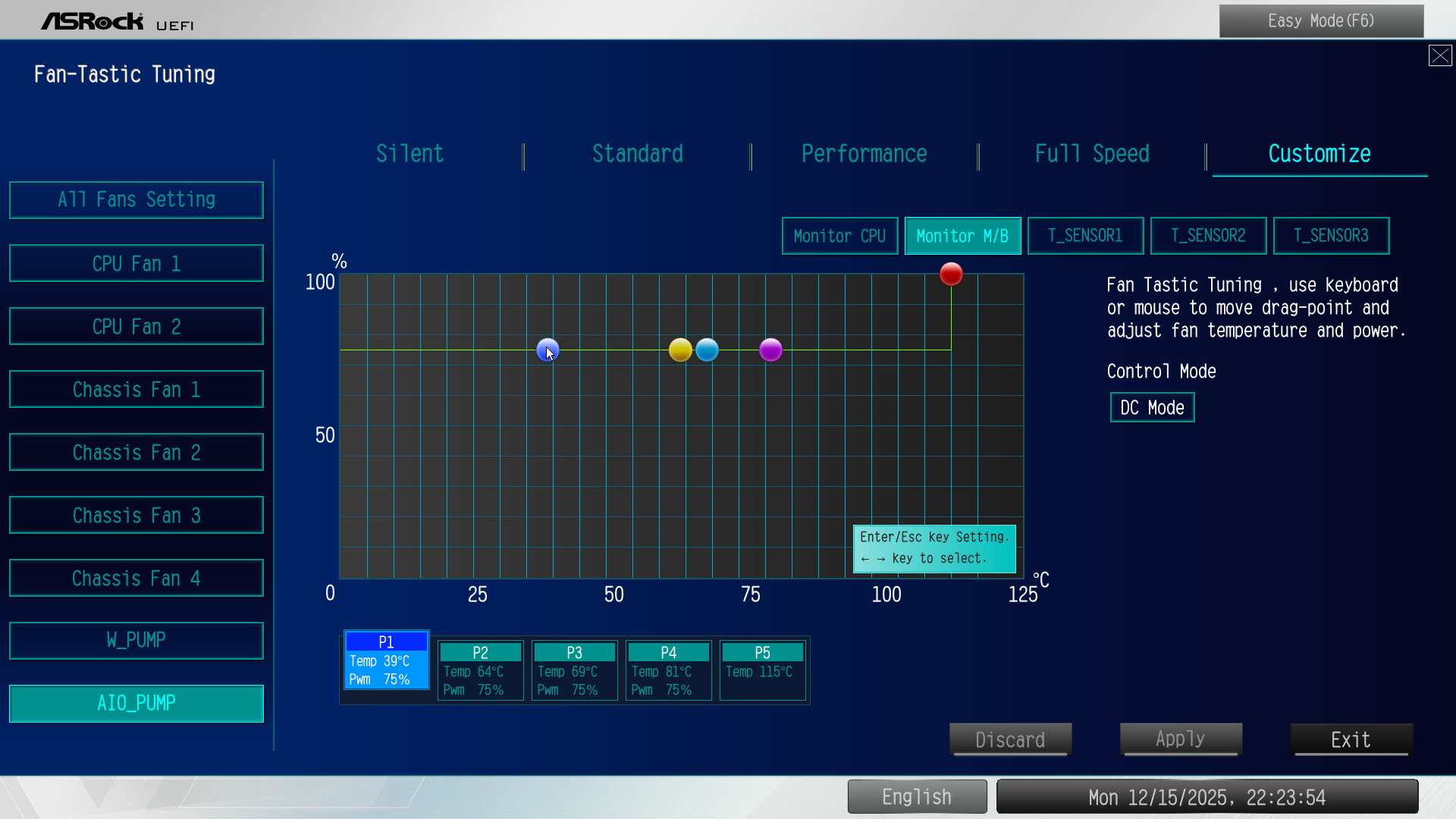
In the BIOS of my ASRock Z890 Taichi Aqua motherboard, I changed the AiO pump control mode from PWM to DC so that I could set a fixed voltage instead of a fluctuating signal. I initially set this to fifty percent, but this proved too low and resulted in RGB flickering, indicating insufficient power. Increasing the setting to around seventy percent resolved this immediately.
The result was instant and dramatic. The pump became completely silent, matching the behaviour of my previous Arctic AiO coolers. No buzzing, no whining, no high frequency noise. Just smooth and quiet operation.
This is a solution that is never clearly described in Lian Li’s documentation, yet for me it was the only way to eliminate pump noise entirely. Following the official guidance exactly resulted in a noisy cooler, while stepping outside of it and configuring the pump correctly at the motherboard level solved the issue completely.
If you are considering the HydroShift II, be aware that achieving silent operation may require manual configuration that goes beyond the provided instructions. Once properly set up, however, it delivers excellent aesthetics, a beautiful LCD display, and cooling performance that finally lives up to expectations.
Additional configuration in L Connect 3
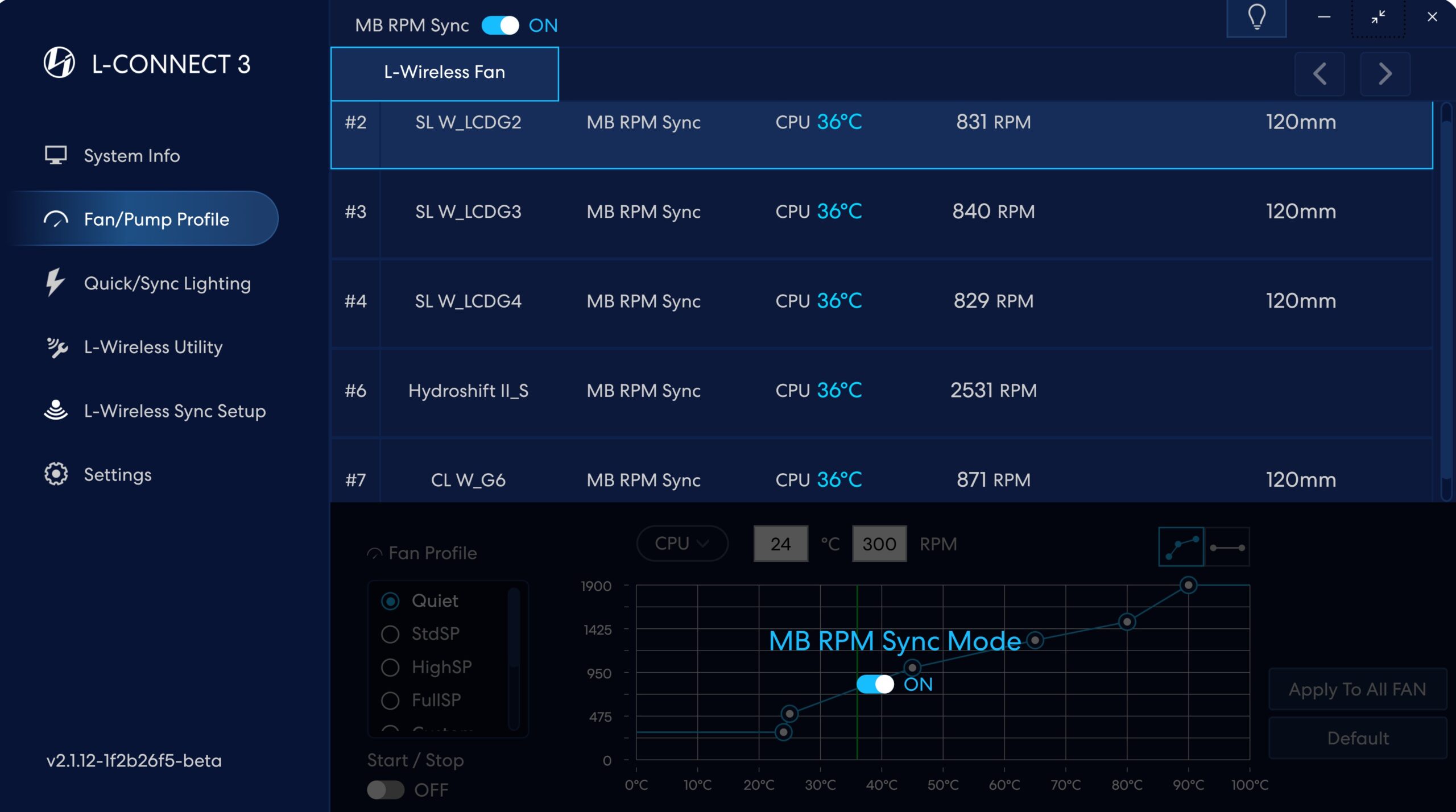
In addition to the BIOS configuration, I also adjusted the settings in Lian Li’s L Connect 3 software. I set the fan and pump profile to MB RPM Sync, which allows the motherboard to remain in control of speed reporting and prevents the fans from ramping up unnecessarily during normal operation.
This setting alone helps keep the system feeling calmer and more consistent. Alternatively, a custom fan curve can be created within L Connect 3, which also eliminates sudden fan speed changes and achieves the same quiet result. Both approaches work well, but MB RPM Sync paired with proper BIOS control provided the most stable and predictable behaviour in my setup.
Putting the HydroShift II through its paces
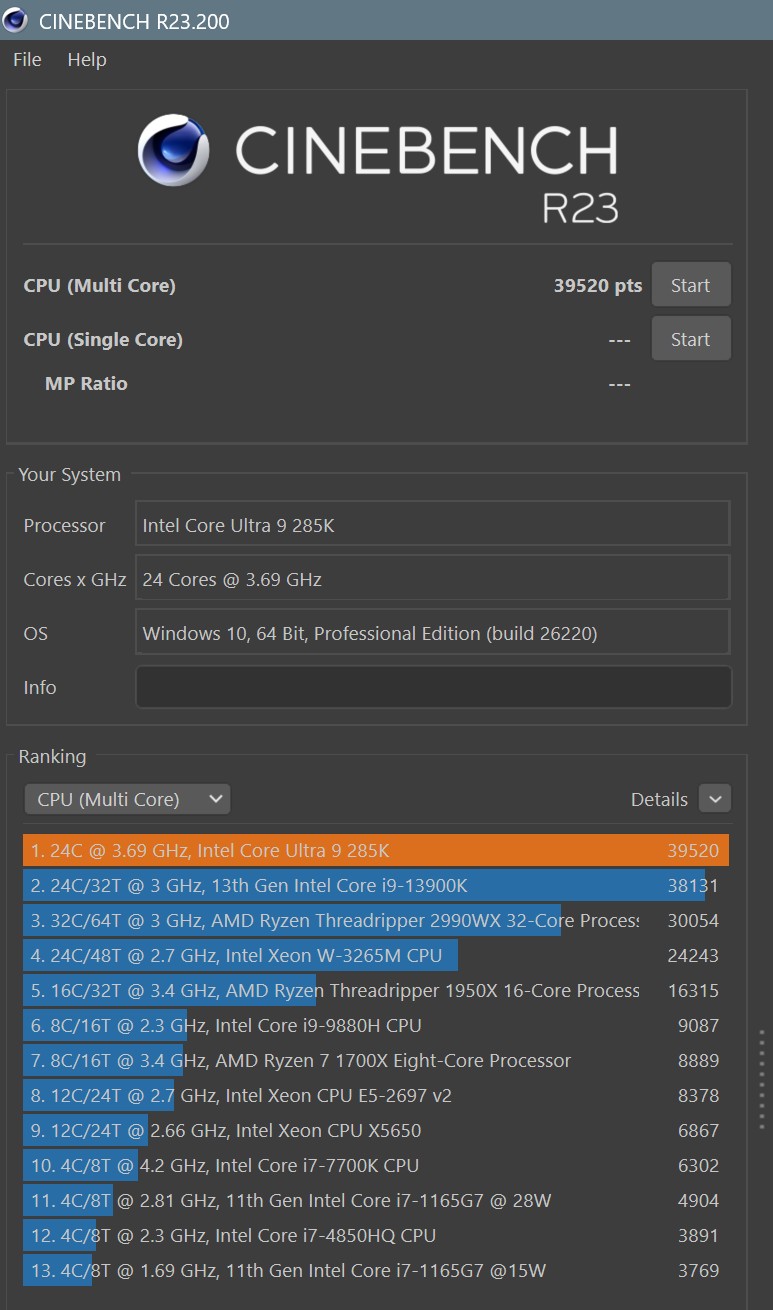
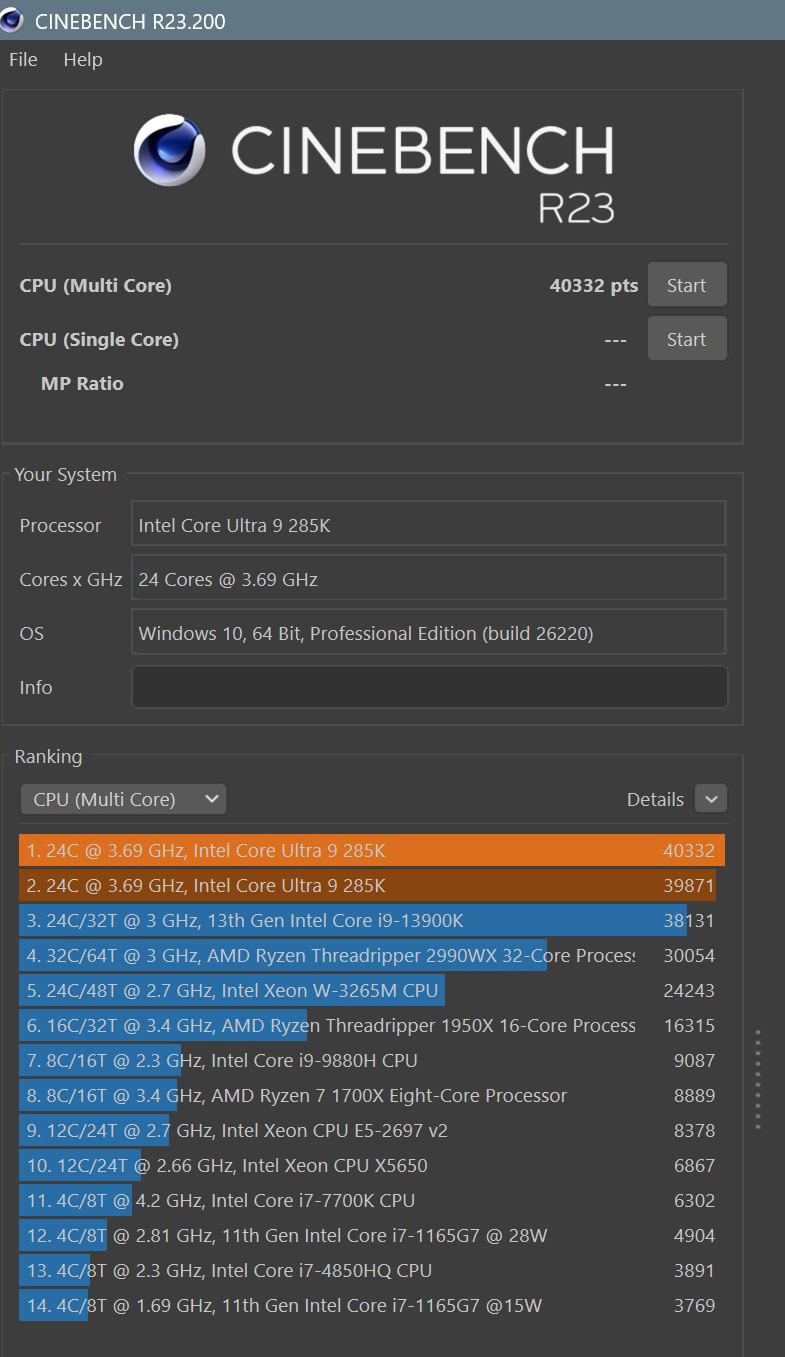
After achieving silent operation, I decided to put the HydroShift II through a proper stress test to ensure that the cooling performance matched the refined acoustics. To do this, I ran a ten minute Cinebench R23 multicore benchmark on my Intel Core Ultra 9 285K, a demanding workload that places sustained all core load on the CPU and quickly exposes any cooling weaknesses.
During the test, temperatures gradually rose and settled at a peak of around 89 degrees Celsius. While this may sound high on paper, it is well within expected behaviour for this processor under a prolonged synthetic workload like Cinebench. Importantly, temperatures stabilised rather than continuing to climb, indicating that the cooler was handling the sustained load correctly.
Interestingly, the fans remained very quiet for a significant portion of the test before ramping up later on, which suggests that the radiator and coolant mass were absorbing heat effectively before reaching saturation. This behaviour aligned well with what I would expect from a quality 360 mm AiO.
It is also worth noting that my thermal paste application was far from ideal. I chose to use Arctic thermal paste instead of the paste supplied with the HydroShift II. While Arctic’s paste is excellent, it is designed to be applied in an X or dot pattern and compressed by the cooler rather than spread manually. I attempted to spread it, which resulted in an uneven application, a bit of a dog’s dinner, if you will, yet despite this the cooler still delivered stable temperatures and a Cinebench score of 39,520, comfortably within the expected performance range for this CPU at stock settings. The system was running the pump in DC mode to eliminate noise, and there was a slight flicker on the LCD screen near the end of the benchmark, likely caused by brief thermal or power fluctuations under heavy load. This was minor and did not affect the cooler’s overall performance or stability, which remained impressive throughout the test.
A note on what I mean by noise
When referring to pump noise in this review, it is important to clarify what that actually means. This is not a loud or aggressive sound. Instead, it is a subtle, high frequency tone that becomes noticeable once your ears pick it up. For those who are sensitive to sound, this kind of pitch can be particularly distracting, even when overall system volume remains low.
The perception of this noise is also influenced by proximity to the system. Sitting closer to the computer makes it easier to detect, while those further away may not notice it at all. As with all acoustic issues, this is ultimately subjective, and some users may never find it bothersome.
For me, however, it was noticeable enough to break the otherwise premium and refined experience I was expecting, which is why eliminating it completely became a priority.
Additional Observations and Notes
While the HydroShift II performs beautifully in standard use, I discovered a scenario that can cause unexpected behaviour during very heavy workloads.
When processing high resolution 4K video in Topaz Video, the LCD screen on the cooler would flicker uncontrollably, my custom animation disappeared, and the fans appeared to continuously try to ramp up without reaching full speed. The system behaved almost like an engine revving endlessly under load.
After extensive troubleshooting, including testing BIOS DC settings, swapping cables, and reinstalling L Connect 3, the issue persisted. Everything worked perfectly during gaming, Cinebench, and general use, which made this behaviour particularly perplexing.
Ultimately, the solution was straightforward. I unplugged the wireless receiver from the Thermalright USB hub it had been connected to and plugged it directly into an available motherboard USB header. After this change, the issue disappeared completely. The fans remained quiet under all loads. During Cinebench, they were completely silent, and even during heavy video processing, they only produced a slight, barely noticeable sound without ramping up. The LCD display also functioned correctly throughout.
It is worth noting that this issue may only occur when using the LCD display of the HydroShift II. When using another AiO cooler, such as my previous Arctic 360, with Lian Li wireless fans, connecting the receiver to a USB hub worked perfectly without issue.
For potential buyers, I strongly recommend connecting the receiver directly to a motherboard USB header rather than a hub when using the HydroShift II with the LCD display. This step resolves the problem reliably and ensures the cooler performs as expected under all workloads.
Overall, I am extremely pleased with my setup. The HydroShift II now delivers silent operation, stable cooling, and the visual flair of the LCD display, making it a refined and satisfying upgrade.
For reference, the following list includes some of the components used in this build that are visible in the images and video. All links below are Amazon affiliate links.
• Phanteks NV5 MKII Mid Tower Case White
• Lian Li UNI SL120 INF Reverse Blade ARGB 120mm Fans White three pack
• Lian Li STRIMER Wireless ARGB 24 Pin Extension Cable
• Lian Li STRIMER Wireless ARGB GPU 12 plus 4 Pin Narrow Extension Cable
• Phanteks AMP 1000W V2 80 PLUS Gold Power Supply White
• Phanteks Universal 5.5 Inch Hi Res Display White
• Gigabyte NVIDIA GeForce RTX 4070 AERO OC 12GB GDDR6X Graphics Card
• Thermalright Internal USB 2.0 Hub X5 SATA Powered Magnetic Mount White
• Lian Li UNI FAN SL Wireless LCD 120mm RGB Reverse Blade
Used as a bottom intake fan
• Lian Li UNI FAN SL Wireless LCD 120mm RGB Standard Blade
Used as rear exhaust fan
Addendum – Clarifications After Extended Use
Updated on 30 January 2026 after five weeks of hands-on testing.
After over a month of extended, day-to-day use, I wanted to add further clarification to my original review of the Lian Li HydroShift II. At the time of writing the initial review, the cooler was performing as expected, though I did encounter a few hiccups along the way. I deliberately held off on adding further commentary until I was confident the system was fully stable and behaving consistently under real-world workloads.
After further real-world use and troubleshooting, I want to clarify a few points from my original review to better reflect how the HydroShift II behaves in practice.
Fan & Pump Control – Software vs BIOS
While L-Connect software offers extensive control in theory, in my setup using it to manage all fans and the pump resulted in unstable behaviour. Even when set to “Quiet” or “Normal,” fan speeds would ramp up and down erratically, with temperature readings fluctuating in a way that didn’t reflect actual system load.
The only configuration that proved consistently stable was allowing the motherboard BIOS to control all fans and the pump directly. This required disconnecting the SATA power cable used by the Lian Li UNI FAN SL Wireless LCD fans and instead connecting the fan cables directly to motherboard headers. When powered this way, the BIOS can properly manage fan curves, preventing unnecessary high-RPM spikes that add noise without improving cooling.
The trade-off is that all Lian Li wireless fans appear as a single fan group in the BIOS, meaning they cannot be adjusted individually. Separate fan control would only be possible by either disconnecting the USB data connections for the LCD fans (which defeats the purpose of using LCD fans at all), or by using non-wireless fans, whether from Lian Li or another manufacturer.
For my use case, grouped control via a carefully tuned BIOS fan curve has proven quieter, more predictable, and more effective overall.
Thermal Paste Re-Application & Benchmarking Context
After reapplying thermal paste using Arctic’s MX-7, I ran Cinebench to reassess temperatures. Results showed noticeably improved peak temperatures compared to earlier testing. That said, this improvement cannot be attributed solely to the new thermal paste, as it likely reflects a combination of factors — including the corrected paste application, revised BIOS fan curves, and the more stable pump and fan behaviour achieved later.
The key takeaway is that once installation variables and control methods were refined, thermal performance became more consistent and predictable, rather than dramatically different in isolation.
USB Receiver, Software Interaction & Erratic Behaviour (Clarified)
In my original review, I noted that moving the wireless receiver from a USB hub to a motherboard USB header appeared to resolve erratic fan ramping and LCD flickering during heavier workloads such as video editing. At the time, this change did appear to stabilise the system, but further use showed that it was not the definitive cause.
I later observed that an NVIDIA background service (NVDisplay.ContainerLocalSystem), enabled following a driver update, coincided with the return of the issue. Disabling this service again appeared to resolve the problem temporarily; however, the behaviour eventually returned even with the service disabled. This made it clear that no single software component could be conclusively identified as the root cause.
True long-term stability was only achieved after a combination of changes:
Removing the SATA power connection used by the Lian Li wireless fan hub and connecting all fans directly to motherboard headers
Slightly increasing the pump duty cycle
Updating the wireless receiver firmware
After making these adjustments together, the system has remained stable, with no further erratic fan behaviour or LCD flickering. While it’s difficult to isolate which individual change had the greatest impact, the combined result has been consistent and reliable.
Lian Li recommend connecting the receiver either to a spare internal USB header or to a USB Type-A port on the rear or front of the case. While technically valid, external USB ports are untidy and impractical for a permanent internal component. In my experience, keeping the receiver inside the case, connected either to a motherboard USB header or to a quality internal USB hub, is the cleanest and most sensible approach.
Pump Speed Adjustment
Following the fan power changes, I also slightly increased the pump duty cycle from approximately 74–75% to around 78%, equating to roughly 2600 RPM. This minor adjustment helped stabilise overall system behaviour without adding noticeable noise and has remained stable since.
Final Update and Recommendation (computer says no — and so do I)
Updated on 11th of February 2026
The latest 1.2 receiver firmware update which I updated on the 4th of February caused a complete system failure on my machine. I followed Lian Li’s instructions exactly, as I have done with previous firmware updates, updating the firmware through L Connect as directed. Immediately after rebooting, Windows refused to load and produced repeated green screen crashes with the stop code KMODE_EXCEPTION_NOT_HANDLED. It took several attempts before I could get back into Windows at all.
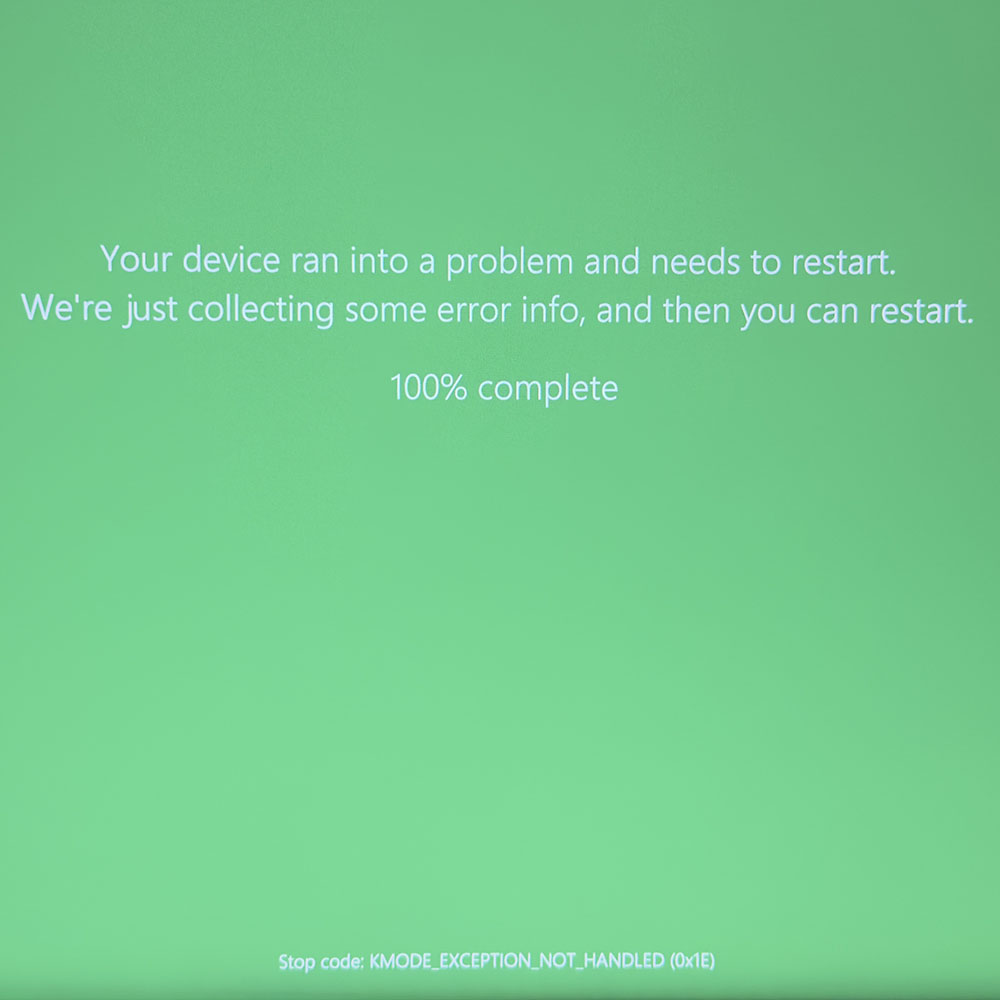
When I finally managed to log in, the software no longer respected motherboard sync, the fans ramped aggressively, and the cooler behaved unpredictably. The system felt unstable and inconsistent in a way that was impossible to ignore. I rolled both the firmware and software back to the previous versions, and only then did everything return to normal.
This experience is not an isolated case. Searching “HydroShift II” on Lian Li’s own Discord returns more than fifty pages of users reporting similar or worse issues, pump noise spikes, LCD disconnects, USB instability, firmware failures, contact‑pin problems, receivers not being detected, fans refusing to spin, and units requiring replacement screens or controllers. This volume of reports makes it clear that the problems are widespread, not rare. Lian Li has already revised pumps, screens, and controllers in newer batches, which strongly suggests that early units like mine were affected by real design or manufacturing flaws that customers were left to troubleshoot on their own. To their credit, Lian Li’s support team is active on Discord and often provides troubleshooting steps or replacement parts, but the sheer number of affected users shows that these issues go far beyond isolated defects.
My cooler is only stable because I am running the older firmware L3 v2.1.14, 12-30-2025 version of L‑Connect. The newer 1.2 receiver firmware caused system‑breaking instability, so remaining on the previous firmware is the only way to keep the cooler usable. Disabling update notifications simply prevents L‑Connect from prompting me to install the problematic firmware again. A premium product should not require users to avoid updates or freeze their system software just to maintain basic stability..
Because of the fragile firmware and software ecosystem, the inconsistent behaviour, and the system breaking failure caused by the 1.2 receiver firmware update, I cannot recommend the HydroShift II LCD S 360CL. It looks beautiful and cools well once tamed, but the ongoing maintenance and risk of instability outweigh the benefits.
I’m continuing to use this AIO cooler and I do enjoy it, but the path to get here has been filled with technical issues, firmware failures, and hardware inconsistencies. Even though Lian Li is updating components in newer batches, customers shouldn’t have to act as beta testers for a premium product. Without any guarantee that the revised hardware or software is truly reliable, the fairest and safest conclusion is simply not to recommend it.